
Your conversations with loved ones are among the most treasured content stored on your mobile device. Given that WhatsApp is the preferred choice for chatting globally, its data can also be considered the most vital. Yet like any other file stored on a digital device, these chats and media are also prone to loss. In the past, many believed that rooting an Android phone was the only way to recover it.
Thanks to advanced Android data recovery software, that is no longer true. This quick guide will explore how you can now get your conversations back safely without going through the risky process of rooting. So, stick till the end to find out an advanced solution to reread your favorite WhatsApp chats.
Part 1. Why Root-Free WhatsApp Recovery Matters for Android Users?
Whenever the important content on the mobile gets erased, a sense of panic sets in the targeted user. It becomes a lot more prominent when it comes to chats due to the emotions attached to them. A while ago, attempting to recover WhatsApp messages meant first rooting the Android. Explored in detail below is why that was a bad idea and its unintended consequences for regular users:
1. Rooting Can Void Your Warranty
Once a phone is rooted, it ends up breaking the terms set by the device manufacturer for warranty. That means if something goes wrong with the mobile, you cannot claim an official repair. Most manufacturers consider rooting as altering the original system, which disqualifies the device from support services.
2. Introduces Serious Security Risks
A rooted mobile ends up losing a lot of native protection against data loss and security risks. With these gone for good, the device gets exposed to apps trying to bring in spyware or ransomware. That can steal data ranging from private messages and financial details to personal photos without you even knowing.
3. Recovery Becomes More Complex
Once the system is rooted, it changes how your phone stores and protects data. Some recovery tools may no longer work correctly or may require much more complicated steps. Instead of making recovery easier, rooting can create more confusion and require deeper technical skills just to retrieve a few deleted chats.
4. Future System Updates May Fail
Rooting can interfere with how Android handles major firmware upgrades in the future. The mobile may block new updates completely or behave unpredictably after installing them. As a result, this can leave the phone stuck on an older firmware full of bugs and lag.
5. A Much Higher Chance of Data Loss
Ironically, the biggest danger of rooting an Android mobile is the much-increased chance of content deletion. During the very process itself, files and apps can be deleted if something goes slightly wrong. A single mistake could erase not just WhatsApp messages, but also all other content and make recovery much more difficult.
Part 2. Trusted by Millions: Dr.Fone Android Data Recovery
Finding a safe and effective way to get back your WhatsApp chats and media is a must when rooting becomes a non-option. The retrieval of lost content is absolutely possible with the right tool. That is where Dr.Fone – Data Recovery (Android) comes into the fray with its robust functions. Designed for simplicity and safety, this solution also helps users in WhatsApp Business delete message recovery.
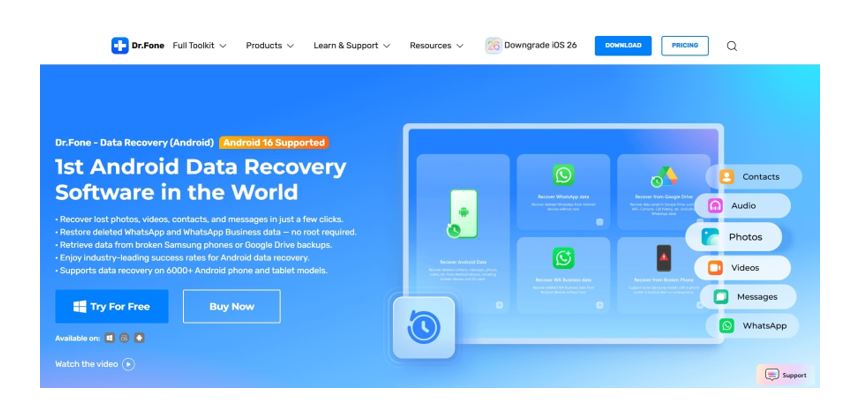
Without changing system settings or compromising the phone’s warranty, it can retrieve content ranging from chats and photos to voice notes and stickers. This tool doesn’t rely on system-level access or complex installations.
Instead, it uses advanced deep scanning technology to explore your phone’s storage. With it, Dr.Fone can locate even items that are no longer visible in the app. The following is why millions of Android users trust it:
- Root-Free Functionality: It recovers all types of WhatsApp content without rooting the mobile, ranging from messages and stickers to documents and media.
- Smart File Preview: Before restoring, it shows you a clear preview of the recoverable data so you can selectively choose what to restore.
- Supports Multiple Brands: From Samsung and Huawei to Xiaomi and OPPO, the tool works across thousands of Android models with no extra steps.
- No Overwrites or Data Corruption: Your existing files stay untouched as it retrieves lost chats and media without affecting what’s currently on your phone.
- User-Oriented Design: The entire recovery takes just a few guided clicks, perfect for people with no advanced skills or entirely new to this scenario.
- Compatible With Crashed or Damaged Devices: Even if your phone is unresponsive or has a broken screen, Dr.Fone still offers a chance at getting back the lost content.
Part 3. User-Friendly Process for Non-Tech Users
For those who aren’t really into complex stuff, getting back the lost files can prove a difficult task. However, the process becomes surprisingly simple when the tool is built with everyday users in mind. That is exactly how Dr.Fone – Data Recovery (Android) is designed. The following recovery steps are laid out in a way that removes confusion and works smoothly when trying to recover WhatsApp messages:
Step 1. Launch the Data Recovery Program and Access the Recovery Menu
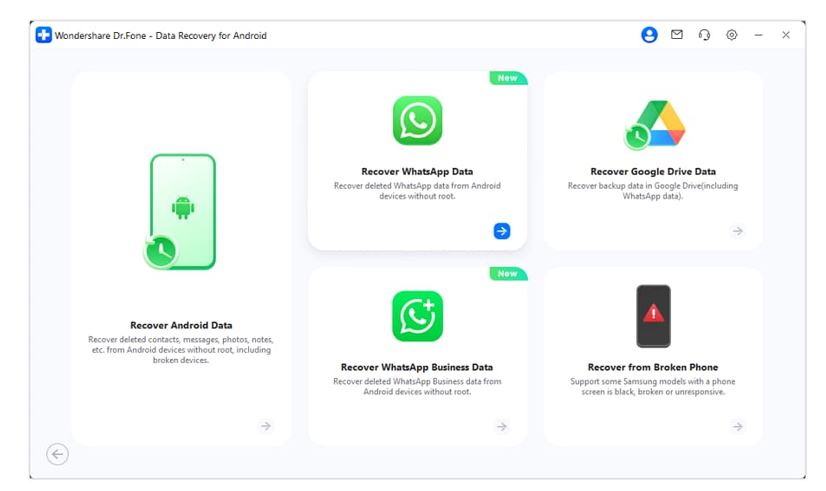
Run Dr.Fone – Data Recovery (Android) on the system and move to choose “Data Recovery” from the “Toolbox” section. Then, opt for “Android” as the device type and click the “Recover WhatsApp Data” button in the recovery menu.
Step 2. Move to WhatsApp on Your Android Phone and Create a Backup
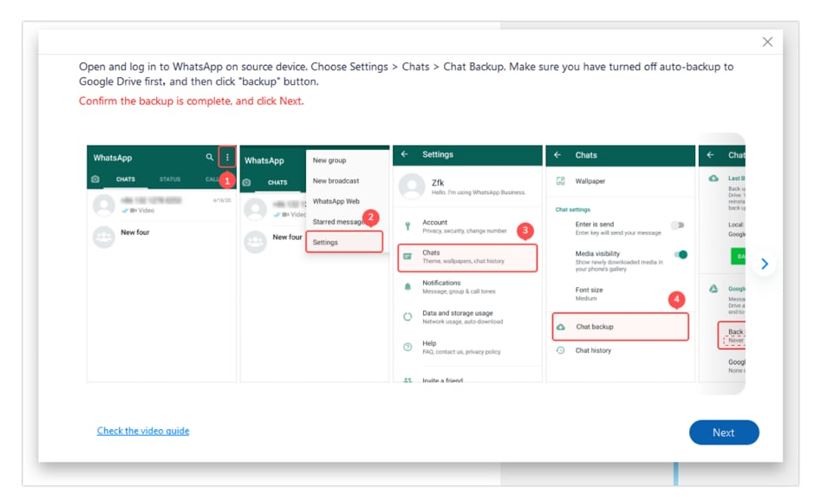
At this point, link the Android to the system and hit “Next” to let the program create a phone backup. When done, access the “Chats” tab in the WhatsApp settings and create a “Backup” before hitting “Next” on the screen.
Step 3. Log in Using the Same Number and Restore the Backup
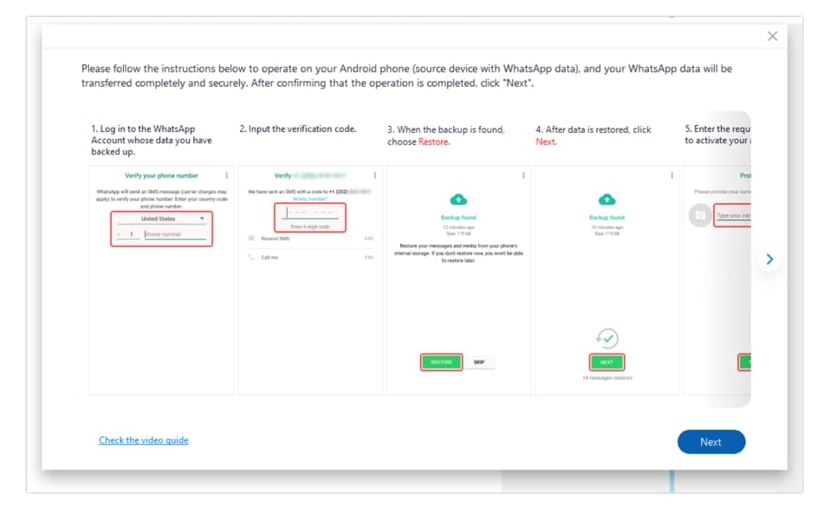
After reinstalling WhatsApp, launch it on the phone and grant all required permissions to hit “Next.” Following that, log in to the app to restore the backup you created and tap “Next” on the computer.
Step 4. Choose the Chats and Media Files You Wish to Recover
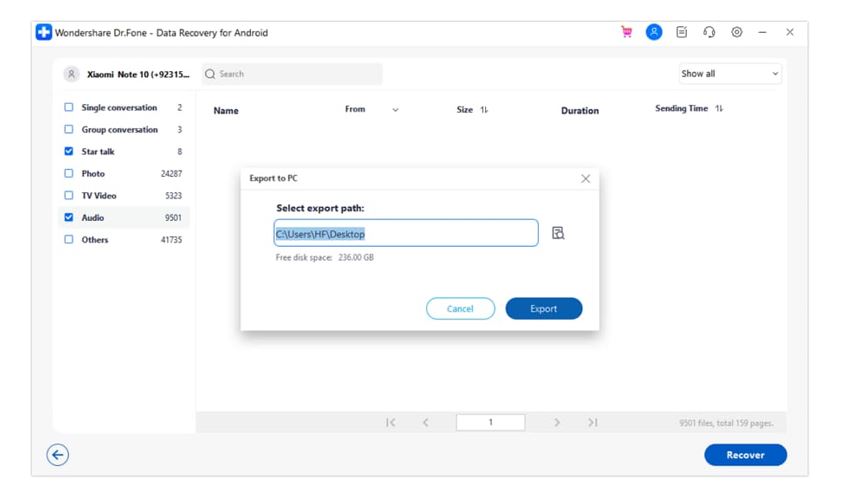
Moving forward, Dr.Fone recovers and loads all the lost WhatsApp content on the screen for you to choose from. Lastly, select the targeted content and hit “Recover” before restoring it via “Export” to the defined location.
Conclusion
In the end, losing important WhatsApp data doesn’t have to mean losing peace of mind. That is especially true if you’re using an Android phone. Instead of risking your device through rooting, you can now rely on a safer and simpler method. Dr.Fone – Data Recovery (Android) offers a secure way to recover deleted chats and attachments.
With deep scanning and zero system modification, it brings your data back without hassle. From accidental deletion to a phone crash, this Android data recovery tool ensures that your memories and messages stay within reach. No tech expertise or risky steps required as part of the operation.
TOP ALTERNATIVES
 Transforming Clicks To Profits: 8 Strategies For Affiliate Marketing
 How to Invest in Cryptocurrency As a Beginner
 What Are the Best Lighting Decoration Ideas for 2024?
Bitcoin Revolutionizes Online Gaming Industry – A Win for Digital Transactions and Security
What Are the Best Lighting Decoration Ideas for 2024?
Bitcoin Revolutionizes Online Gaming Industry – A Win for Digital Transactions and Security
 Extending Your Device’s Battery Life
MovPilot Stream Video Downloader: All-in-One Video Solution
Extending Your Device’s Battery Life
MovPilot Stream Video Downloader: All-in-One Video Solution
 20 Tools To Boost User Engagement
Selecting KMSpico or KMSAuto as the Best Activator for Windows and Office
20 Tools To Boost User Engagement
Selecting KMSpico or KMSAuto as the Best Activator for Windows and Office
 Impact of AI on Graphic Design – AI Thumbnail Maker
 Crafting the Ideal Online Shopping Journey