
Introduction
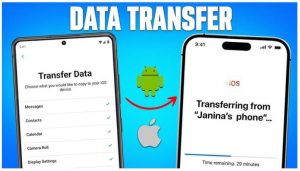
The Switch from Samsung to iPhone is now widespread. However, one of the issues faced by most users is transferring photos from one device to another. You must be wondering how to transfer pictures from Android to iPhone without compromising quality, order, or album titles. JPEG or HEIC is a standard image format for Samsung devices. iPhones also support HEIC. However, Apple’s official Move to iOS app sometimes fails mid-transfer or skips data, leaving users with incomplete transfers.
This article covers the solution to this specific problem. Now you can transfer photos from Android to iPhone fast, cleanly, and stress-free with our recommendations. The guide provides access to the most advanced 2025 tools for cable or cloud-based solutions.
Pre-Transfer Checklist
Prepare both devices before transferring photos. A few basic actions may save time, prevent mistakes, and ensure safe picture movement. Tips for using a USB cable or cloud app can help you prevent common issues.
-
Free Up Space on Your iPhone
To transfer full-size photographs, your iPhone needs enough storage. Turn off “Optimize iPhone Storage” in “Photos > Settings.” This saves new Android images as full-quality, not thumbnails.
-
Clean Up Your Samsung Photos
Your Samsung cellphone may hold thousands of unclear, dark, or duplicate photographs. Clean them before transferring to save 30% time.
Use the Dr.Fone Photo Cleaner app. It examines your gallery and proposes low-quality or unneeded photographs using “Smart Clean”.
-
Gather the Tools You Need
- Transfers occur with both devices fully charged or plugged in.
- You pre-install your app (like MobileTrans) on your PC or devices.
-
Backup Samsung Photos (Optional but Smart)
Backup your photographs before transferring them. Save to Google Photos, Samsung Cloud, or a PC or SD card. If the photo transfer fails, this protects your memories.
Following this checklist can prepare you for a quick and safe transfer. These methods are necessary to transfer Android photos to an iPhone without sacrificing quality or time.
Solution 1: MobileTrans – Fastest & Most Reliable
Transferring photos from a Samsung to an iPhone without losing quality, albums, or specific details, such as the date and location, is a significant issue. MobileTrans – Photo Transfer by Wondershare helps. It’s a simple yet powerful tool for fast and safe photo transfer between platforms.
Why Choose MobileTrans?
MobileTrans is designed for transferring photos between Android and iPhone devices. It supports both USB and Wi-Fi connections on Windows and Mac. Send all your photographs at once—no batch limits—and retain everything intact.
Other methods, including email, Google Drive, and Bluetooth, compress photos, mix albums, and lose metadata. MobileTrans eliminates that concern. Your photos are preserved in full quality and detail:
- Date and time the photo was taken
- Album names and structure
- Location and other EXIF metadata
This is the easiest way to transfer Android photos to an iPhone without sacrificing quality or order.
Key Features:
- High-resolution photo transmission without compression
- Maintains album and file structure
- Preserves date, time, and location EXIF metadata
- Supports JPG, PNG, HEIC, RAW, etc.
- Compatible with Android, iPhone, and PC
- Without internet (100% private, no cloud uploads)
- Transfers contacts, videos, and messages.
How to Use MobileTrans (Step-by-Step)
Step 1. Install MobileTrans on your PC. Launch the program and choose “Phone Transfer > Phone to Phone.”
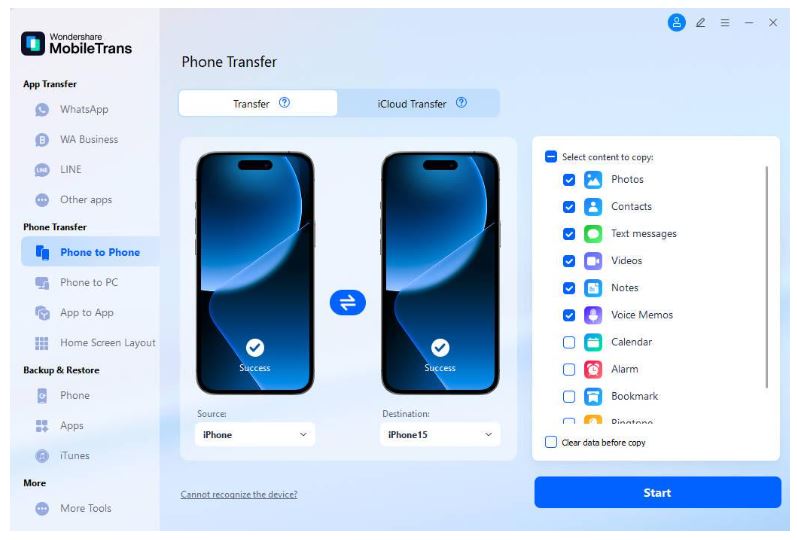
Step 2. Connect your Samsung and iPhone to the computer via USB-C to Lightning (or wifi if supported).
Step 3. Select “Photos” from the file list. You may also check movies, messages, and contacts.
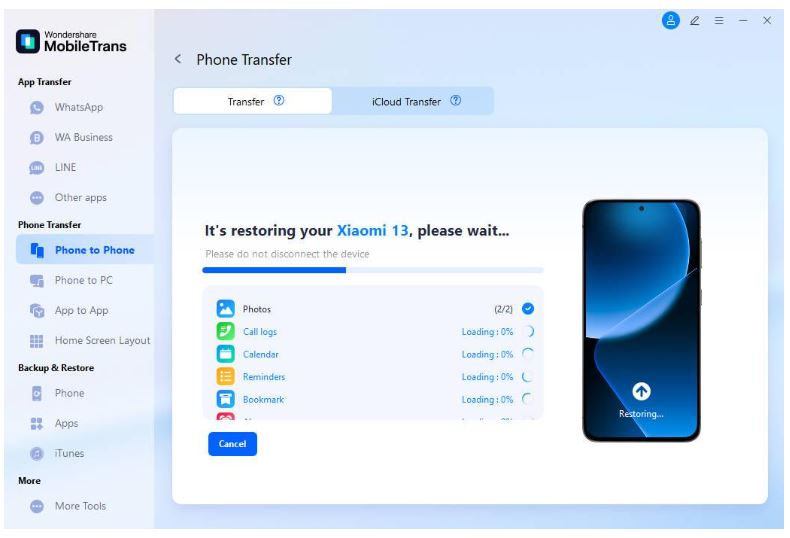
Step 4. Click “Start” to begin. MobileTrans securely transfers photographs with complete data in original quality.
Step 5. Finally, unplug the phones and view your images on your new iPhone, just as you would on your Samsung.
Pros
- Easy to use—just a few clicks
- Minutes to transfer thousands of photographs
- Keeps everything orderly
- Works despite Apple’s “Move to iOS” failure.
- Fast, private, no cloud uploads
Solution 2: Google Photos Sync
Google Photos is a dependable and straightforward cloud-based photo storage and sharing service. It’s one of the easiest ways to transfer Android photos to an iPhone, especially for Google users.
How it Works:
Google Photos securely stores photos in the cloud. After uploading from your Samsung phone, use the same Google account on your iPhone. This photo transfer method is clever and speedy.
Step 1. Install Google Photos on your iPhone and Samsung. Use the same Google account on both devices.
Step 2. Find the image that you wish to transfer via Google Photos. Tap on the “Share” button and choose Google Photos.
Step 3. The selected photos will be uploaded to Google Photos on your Samsung phone.
Step 4. Launch Google Photos on your iPhone.
Step 5. View your uploaded photographs. Tap the three-dot menu and select “Download” for the items you wish to save to your iPhone.
Why Use Google Photos for Photo Transfers?
- A Google account offers free storage up to 15GB
- Works wirelessly without cords or PCs.
- Automatic photo backup and sync
Things to Keep in Mind:
- Images may be compressed without “Original Quality” settings.
- You need a reliable, fast internet connection.
- It may take longer if you have multiple photographs or videos.
Solution 3: Smart Switch + iCloud (Samsung Ecosystem)
Smart Switch with iCloud is a reliable photo transfer technique for Samsung users. A web browser and an Apple ID are all you need for this iPhone transfer method. It’s also fantastic for transferring Android photos to an iPhone without losing quality. Although it requires several steps, the technique is straightforward and effective.
A. Step-by-Step Workflow
-
On Your Samsung Device
Back up photographs using “Samsung Smart Switch.” Visit the official Samsung Smart Switch page and download the version compatible with your operating system, either Windows or Mac. Make sure the phone is unlocked and set to “File Transfer” mode if prompted. On your computer, once Smart Switch detects your phone, choose “Images” under backup items and click the “OK” button.
-
On Your Computer
Visit “iCloud.com” with any browser. “Sign in” with Apple ID. Click “Photos,” then “Upload,” and upload pictures from the Smart Switch-backed picture files or folders.
Speed Tip: To upload more photos faster, compress the folder into a ZIP file. ZIP files make iCloud uploads quicker and smoother.
-
On Your iPhone
Tap your “Apple ID” at the top of the “Settings” menu, select “iCloud,” and then select “Photos.” Enable “iCloud Photos.” Your iPhone will automatically download images from iCloud.com.
Why Choose This Method?
- Smart Switch-savvy Samsung users benefit.
- No iPhone third-party app installation required.
- A PC and a browser are required for transfers.
- Ideal for uploaders who want greater control.
This approach requires more steps than others, but it’s a great way to transfer photographs from an Android device to an iPhone without using automated software. You can better manage which photos you move, and iCloud syncs everything with your iPhone.
Comparison: Which Method Fits?
Here is the comparison table formatted clearly for easy understanding:
| Method | Time (2,000 Photos) | Best For | Limitations |
| MobileTrans | 3–5 minutes | Bulk or instant photo transfer | Requires installation of the app and a USB/lightning cable |
| Google Photos | 10–15 minutes | Users who prefer cloud sync and already use Google services | May compress images; needs a strong internet connection |
| Smart Switch + iCloud | 15–20 minutes | Samsung users who want to use the built-in tools | Involves multiple steps and manual uploads |
Troubleshooting Common Issues
Even with the most effective approach, photo transfer may still fail. If you have trouble transferring photos from Android to iPhone, here are simple workarounds for the most frequent difficulties.
Photos Not Transferring?
Check Samsung’s Secure Folder to ensure that photographs are transferred from Samsung to the iPhone. This folder locks files for privacy and cannot be shared. Remove your images from the Secure Folder before transferring them to repair it.
Missing Timestamps?
Transferred images can lose date, time, and location. This occurs when EXIF metadata is lost. The easiest fix? Use MobileTrans. It organizes photo data, such as the shooting date and time, to save your memories.
Not Enough Space on iPhone?
Do not worry if your iPhone runs out of space during transfer. You may enable “Optimize iPhone Storage” after transferring. This setting stores full-resolution images in iCloud and reduced ones on your phone to conserve space.
These small changes can ensure your photo transfer runs smoothly, regardless of the technique.
Conclusion
Switching from Samsung to iPhone doesn’t mean you lose memorable photos. You can now transfer all your photographs quickly, safely, and in high quality with the right tools and methods. We recommend using MobileTrans – Photo Transfer by Wondershare to transfer albums, preserving photo quality and timestamps as they are. MobileTrans makes transferring hundreds of photographs easy and stress-free. So start transferring today!
TOP ALTERNATIVES
 Transforming Clicks To Profits: 8 Strategies For Affiliate Marketing
 How to Invest in Cryptocurrency As a Beginner
 What Are the Best Lighting Decoration Ideas for 2024?
Bitcoin Revolutionizes Online Gaming Industry – A Win for Digital Transactions and Security
What Are the Best Lighting Decoration Ideas for 2024?
Bitcoin Revolutionizes Online Gaming Industry – A Win for Digital Transactions and Security
 Extending Your Device’s Battery Life
MovPilot Stream Video Downloader: All-in-One Video Solution
Extending Your Device’s Battery Life
MovPilot Stream Video Downloader: All-in-One Video Solution
 20 Tools To Boost User Engagement
Selecting KMSpico or KMSAuto as the Best Activator for Windows and Office
20 Tools To Boost User Engagement
Selecting KMSpico or KMSAuto as the Best Activator for Windows and Office
 Impact of AI on Graphic Design – AI Thumbnail Maker
 Crafting the Ideal Online Shopping Journey