
Introduction
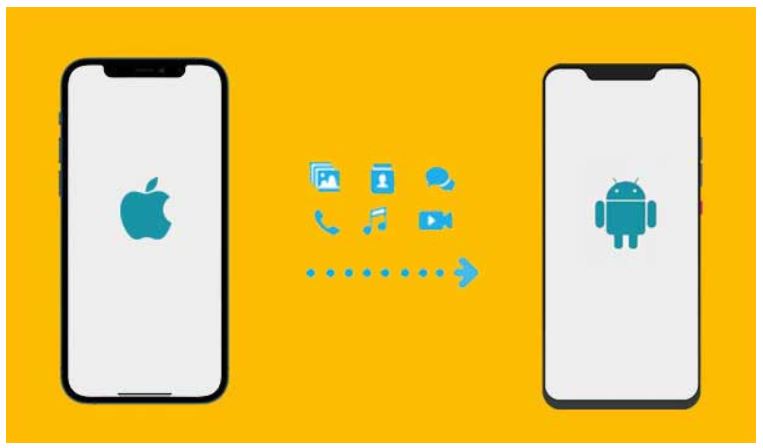
Changing phones is thrilling, but transferring apps and data safely from an iPhone to an Android phone can be difficult. Will you lose messages and notes? Do not worry. This basic guide explains everything.
You may prepare your old iPhone and new Android phone with us. MobileTrans and Google’s Switch to Android can help you migrate apps and data. You’ll also learn how to back up your iPhone, sync images, and transfer essential app data like notes, messages, and game scores. We’ll describe each step in simple language that youngsters and novices may understand. From photo transfer to Android screen setup, we can help. This guide is ideal for learning how to transfer apps from iPhone to Android safely and efficiently.
Pre-Switch Preparation: Setting Yourself Up for Success
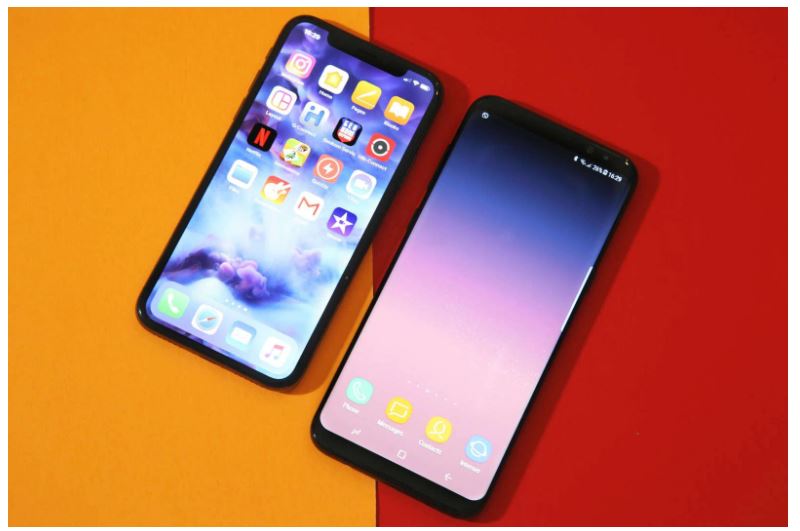
Prepare both phones before transferring apps or data. These simple procedures will prevent major issues.
-
Audit Your iPhone: Know What You Need to Transfer
Check your current iPhone and list your daily essentials.
- Essential apps: Social media, banking, notes, productivity, fitness trackers, streaming, and games.
- Critical data apps: Notes, fitness trackers, and offline games don’t store everything in the cloud.
Make a priority list. Use this to install the proper Android versions later.
-
Find Android equivalents
Some apps work on iPhone and Android. But not all.
- Search Google Play for iPhone apps.
- Visit app developer sites. Most indicate Android support.
- Find the “Best Android alternative to [App Name]” online if your app is unavailable.
Remember to record your login usernames and passwords. Android logins are easier with a password manager.
-
Back Up Your iPhone
Any phone-to-phone transfer must start with this.
iCloud Backup:
- Go to “Settings > [Your Name] > iCloud > Backup > Back Up Now.”
Make sure the last backup was current and error-free.
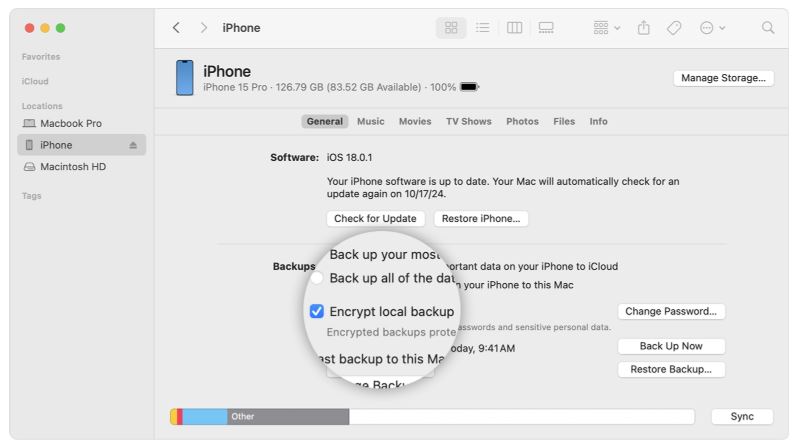
Encrypted iTunes/Finder Backup:
You’ll need this for app data transfer with solutions like MobileTrans. Follow the steps:
Step 1. Connect the iPhone to a PC/Mac.
Step 2. Launch iTunes or Finder (Windows or macOS Mojave).
Step 3. Pick your device.
Step 4. Select “Encrypt local backup” and password. Click “Back Up Now.”
-
Get Android Phone Ready
You should also set up your Android phone to avoid issues.
- Charge both phones fully to avoid interruptions.
- Ensure your Android phone has enough storage for your data.
- Connect to Wi-Fi for quicker transfers.
- Sign in with Google during setup. This helps with cloud sync, app downloads, and security.
Method 1: Using MobileTrans (Phone Transfer) – Recommended for App Data Transfer
MobileTrans is a top phone-to-phone transfer tool for iPhone users who want an easy, safe, and robust solution for transferring to Android devices. MobileTrans makes it easy to migrate apps, messages, images, and other essential items, even for non-tech-savvy users.
Why Choose MobileTrans?
MobileTrans by Wondershare is for rapid, stress-free phone transfers. It goes beyond shifting contacts and photographs. It transfers apps and data, unlike many utilities.
MobileTrans works on 6000+ devices, including iPhone-to-Android. Transfer iCloud data to Android or move files between your phone and computer.
What MobileTrans Can & Cannot Do.
What it Can Do:
- Transfer 18+ data kinds (images, messages, movies, contacts, etc.) across devices.
- Transfer Android apps to iPhone without reinstalling.
- Securely transfer apps without losing data.
- Direct iCloud backups to Android.
- Support most Android and iOS versions, including the latest.
What it Can’t Do:
- Transfer 100% of app data (some apps prohibit it due to privacy or app store limitations).
- No wireless transfer—use USB wires.
- It requires a computer (not a mobile).
What You Need (Prerequisites)
Check these before starting:
- A Mac or Windows computer.
- USB cables for iPhones and Androids.
- An encrypted iTunes or Finder backup of your iPhone (to transfer app data like messages, images, etc.).
- Your PC has the latest MobileTrans.
Just a reminder to back up your iPhone:
Connect iPhone to PC/Mac > Go to iTunes/Finder. Device selection > Select “Encrypt backup”> “Create a password.” Click “Back Up Now.”
Step-by-Step MobileTrans Phone-to-Phone Transfer Guide.
Move apps and data with these simple steps:
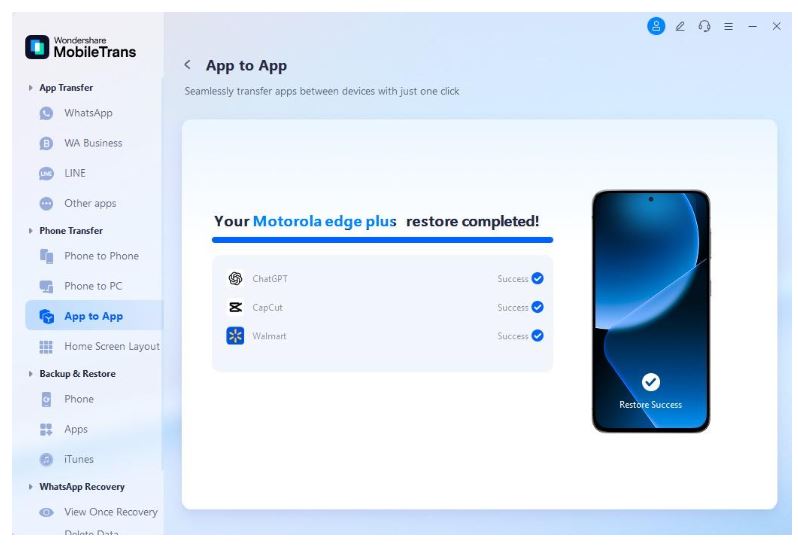
Step 1. Download MobileTrans from the official website. Launch it on your computer. Select “Phone Transfer” from the dashboard and click “Phone to Phone.”
Step 2. Connect iPhone and Android devices via USB.
Step 3. MobileTrans displays all kinds of data. Select the boxes next to the apps, images, videos, contacts, messages, and other items you want to move. Click “Start” and wait. It may take a few minutes, depending on the data. This step requires not unplugging phones!
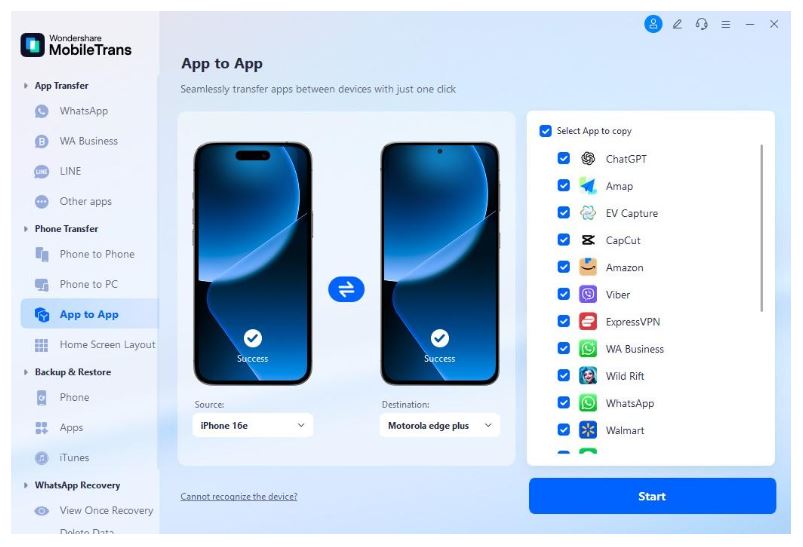
Step 4. Wait for the transfer to finish, then launch your new Android phone’s apps. Apps may auto-detect and request data restoration. Others can sync with the cloud after you.
Method 2: Using Official Tools (Google & Samsung)
There are simple ways for phone to phone transfer of apps from Android to iPhone. Official Google and Samsung applications make the transfer easy. All-level users can utilize these tools to transfer photos, app data, contacts, and more. Google’s Switch to Android and Samsung’s Smart Switch are two reliable options for switching to Android.
-
Google’s Switch to Android (For All Android Phones)
This app is ideal for iPhone users switching to Android 12 or higher. Wireless, no cable required. Follow the steps below:
Step 1. Download Switch to Android on iPhone from the App Store.
Step 2. Tap “Start” after opening and accepting the terms and conditions.
Step 3. Scan a QR code with your Android phone. Tap “Can’t Scan QR Code?” if unsuccessful. Manually link your iPhone to your Android hotspot.
Step 4. Follow the on-screen instructions to disable iPhone iMessage.
Step 5. Tap “Start Request,” sign in with your Apple ID, then tap “Request” to transfer data.
Step 6. Close the app and conclude the Android phone setup.
This approach syncs Google accounts, app lists, photos, and messages phone-to-phone.
-
Samsung Smart Switch (For Samsung Galaxy Phones)
If you’re switching from an iPhone to a Samsung device, Smart Switch is the best option. It’s fast and handles more data types than other apps. Follow the steps:
Step 1. Launch Samsung Smart Switch and select “Receive Data > iPhone/iPad.”
Step 2. Connect your iPhone to your Samsung device using a Lightning cable and an OTG adapter.
Step 3. Tap “Trust” on iPhone. On Samsung, choose Next, and choose apps and data to transfer.
Step 4. Let the transfer finish. Do not disconnect phones throughout the process.
One of the quickest ways to transfer Android apps to an iPhone, Smart Switch enables the transfer of photos, call logs, SMS messages, and app lists.
-
Handling Specific App Data Transfer
Moving app data is often the most challenging part of switching phones. The cloud stores some apps’ data, while your phone stores others. Don’t worry—there are simple solutions.
Cloud Sync Is King
Before performing a transfer from one phone to another, check if you have turned on the iCloud sync for iPhone apps such as Notes, Photos, Reminders, and some games. On your new Android phone, sign in to iCloud.com, Google Drive, Dropbox, Evernote, and Google Play Games.
App-Specific Export/Import
Some apps export data. You can export contacts as vCard files or notes as text or PDF files. Save the file on your iPhone, email it to yourself, or store it on a cloud drive, and then access it on your Android phone. Import it into the Android app.
Developer Tools
Password managers and note-taking apps offer legitimate data transfer features. Check the app’s website or support page for a guide on transferring apps from Android to iPhone or vice versa.
Manual Transfer (Last Resort)
Copy and relocate a few notes or photographs manually if nothing works. Email them to yourself or save them on a cloud drive to open on your new phone.
Post-Transfer: Setting Up Your Android
How to finalize the setup after moving data.
-
Downloading Your Apps
Search Google Play for each pre-transfer app. Install Android apps. Learning how to migrate apps from Android to iPhone and back requires this step.
-
Logging In
Start each app and log in using your username and password. Your cloud sync data should be displayed after logging in.
-
Restoring App Data
-
- To restore app data with MobileTrans: You may see your old data or be asked to fix it when you launch the app.
- For cloud-based apps: Cloud apps immediately import data when you log in.
- For exported data: Upload saved files to the Android app’s import option.
-
Organizing
Set up your home screen with widgets and folders as desired.
-
Final Checks
Make sure your contacts, messages, calendars, photographs, and app data are there.
Conclusion
Switching phones might be rugged, but specific tools make it simple. Follow this tutorial to transfer apps from Android to iPhone or phone to phone. Your data, apps, and memories can transfer with you using MobileTrans or official solutions like Switch to Android. Be patient, step by step, and enjoy your new device!
TOP ALTERNATIVES
 Transforming Clicks To Profits: 8 Strategies For Affiliate Marketing
 How to Invest in Cryptocurrency As a Beginner
 What Are the Best Lighting Decoration Ideas for 2024?
Bitcoin Revolutionizes Online Gaming Industry – A Win for Digital Transactions and Security
What Are the Best Lighting Decoration Ideas for 2024?
Bitcoin Revolutionizes Online Gaming Industry – A Win for Digital Transactions and Security
 Extending Your Device’s Battery Life
MovPilot Stream Video Downloader: All-in-One Video Solution
Extending Your Device’s Battery Life
MovPilot Stream Video Downloader: All-in-One Video Solution
 20 Tools To Boost User Engagement
Selecting KMSpico or KMSAuto as the Best Activator for Windows and Office
20 Tools To Boost User Engagement
Selecting KMSpico or KMSAuto as the Best Activator for Windows and Office
 Impact of AI on Graphic Design – AI Thumbnail Maker
 Crafting the Ideal Online Shopping Journey