
Introduction: Data Loss on Your Mac – A Common Challenge
If you’re a Mac user, you know how important your data is. From cherished family photos to critical work documents, your files are a huge part of your life. But even with macOS’s great design and stability, losing data can happen. It could be from an accidental deletion, a corrupted drive, or a system crash. When your files disappear, it’s a stressful situation.
This guide will show you how to recover data from Mac computer. We’ll cover common problems, the first steps you should take, and the best Mac data recovery solutions to get your files back.
Understanding Data Loss Scenarios Specific to macOS
Understanding common reasons for data loss on a Mac is the first step to successful Mac data recovery. Here are the most frequent scenarios:
- Accidental Deletion: This is the most common cause of lost data. You might accidentally empty the Trash bin or delete files directly from an external drive, bypassing the Trash completely.
- File System Problems: Your Mac uses a specific file system (APFS or HFS+). If this system gets corrupted due to a sudden shutdown or a software glitch, your files can become unreadable.
- Failed macOS Updates: A failed macOS update or upgrade can sometimes lead to data loss or prevent your Mac from starting up.
Time Machine Failures: Apple’s Time Machine is a great backup tool, but if the backup drive is damaged or the backup hasn’t run recently, you won’t be able to restore your most recent files. - Lost Partitions: The partitions on your hard drive can be accidentally deleted or corrupted, making the entire drive look empty and all your data seem lost.
- Viruses and Malware: While less common on a Mac, malicious software can still encrypt or delete your files, leading to data loss.
- SSD TRIM Command: If you have a Mac with a solid-state drive (SSD), the TRIM command makes Mac SSD data recovery very difficult because it quickly and permanently deletes data after you empty the Trash. It’s crucial to act immediately in this situation.
Immediate Steps for Mac Data Recovery
Losing data on your Mac can be stressful, but acting quickly can make all the difference. The most critical rule is to avoid doing anything that might overwrite your lost files.
Here’s what you should not do:
- Don’t keep using the drive: Stop saving new files, downloading apps, or browsing the internet if the lost files are on your main drive.
- Don’t reformat the drive: If your Mac asks you to initialize or format a drive, don’t do it. Formatting will erase all data, making recovery nearly impossible.
- Don’t install recovery software on the same drive: Always install Mac data recovery software on a different drive to avoid overwriting the very files you’re trying to get back.
How to Recover Your Files
After a data loss, you have a few options to get your files back.
Method 1. Time Machine
If you use Apple’s built-in backup tool, this should be your first choice. It’s the simplest way to restore files you’ve accidentally deleted.
Method 2. iCloud
Check iCloud Drive or other synced services. If your files were synced to the cloud, they might still be there.
Method 3. Data Recovery Software
For more serious data loss, such as, a corrupted drive or if you don’t have a recent backup, you’ll need specialized software. Wondershare Recoverit is a powerful Mac data recovery tool designed to handle complex situations.
Wondershare Recoverit: Your Solution for Mac Data Recovery
When choosing software, you need a solution that is reliable and easy to use. Wondershare Recoverit is a top choice for Mac data recovery because it’s built to handle all kinds of data loss scenarios.
Key Features:
- Broad Compatibility: It works with all major macOS versions and file systems, including APFS.
- Recovers All File Types: Whether you’ve lost photos, videos, documents, or emails, it can find and restore them.
- Easy to Use: The simple interface guides you through the process, making it possible for anyone to recover their lost files.
A Step-by-Step Guide to Using Wondershare Recoverit
Using Wondershare Recoverit to get your files back is a straightforward process.
- Download and Install: Download the software from the official website and install it on a separate drive to avoid overwriting your lost data.
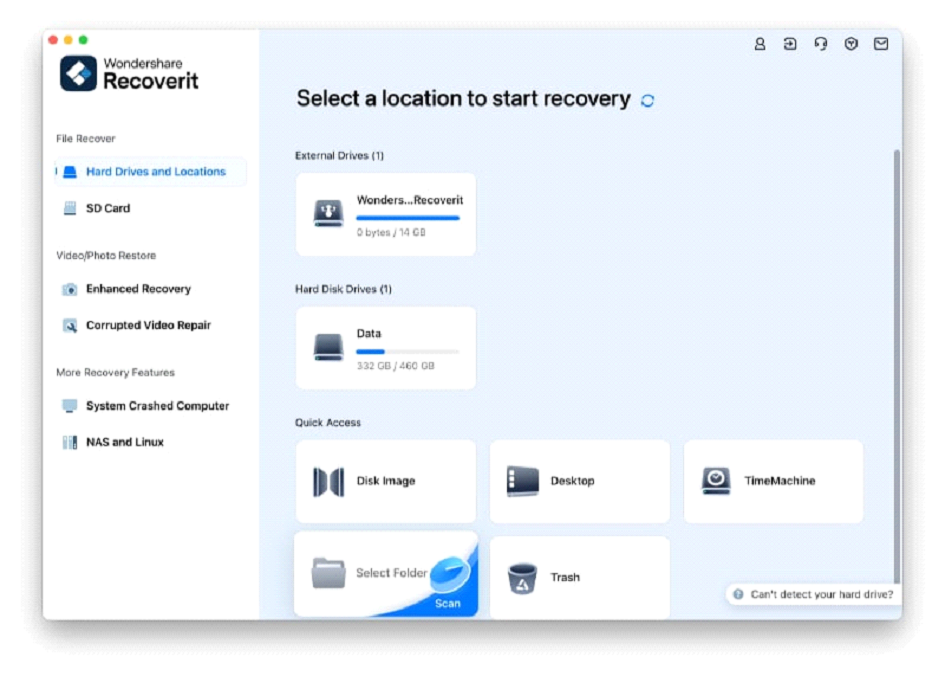
- Select Location: Open the app and go to the Hard Drives and Locations section. Choose the hard drive, SSD, or folder where you lost your files.
- Scan the Drive: Click “Start” to begin the scan. The software will look for all recoverable files.
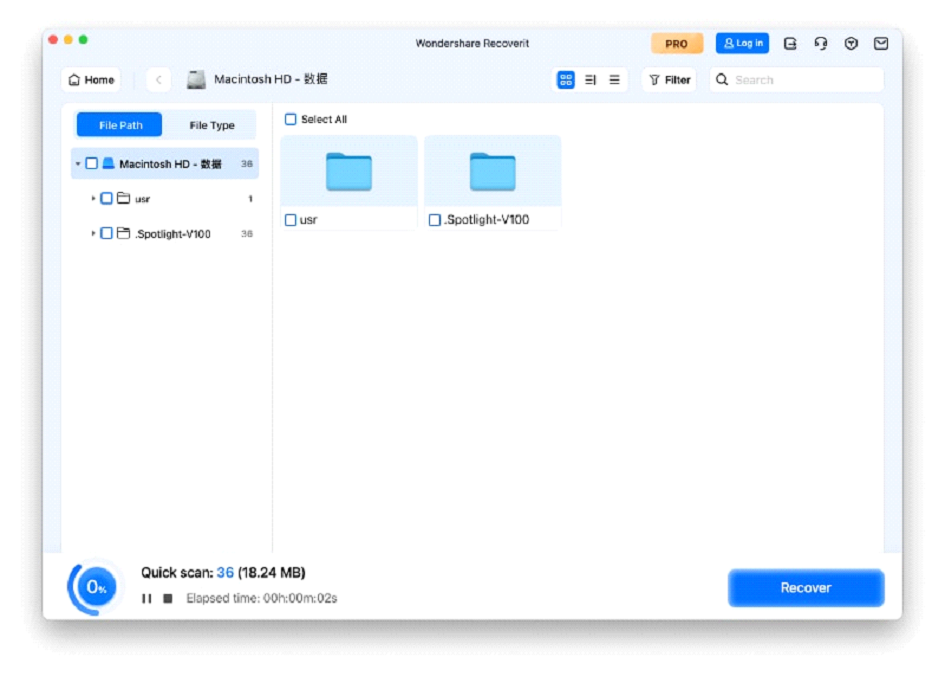
- Preview and Recover: Once the scan is done, you can preview your files to make sure they’re what you need. Then, select the files you want to restore and click “Recover.”
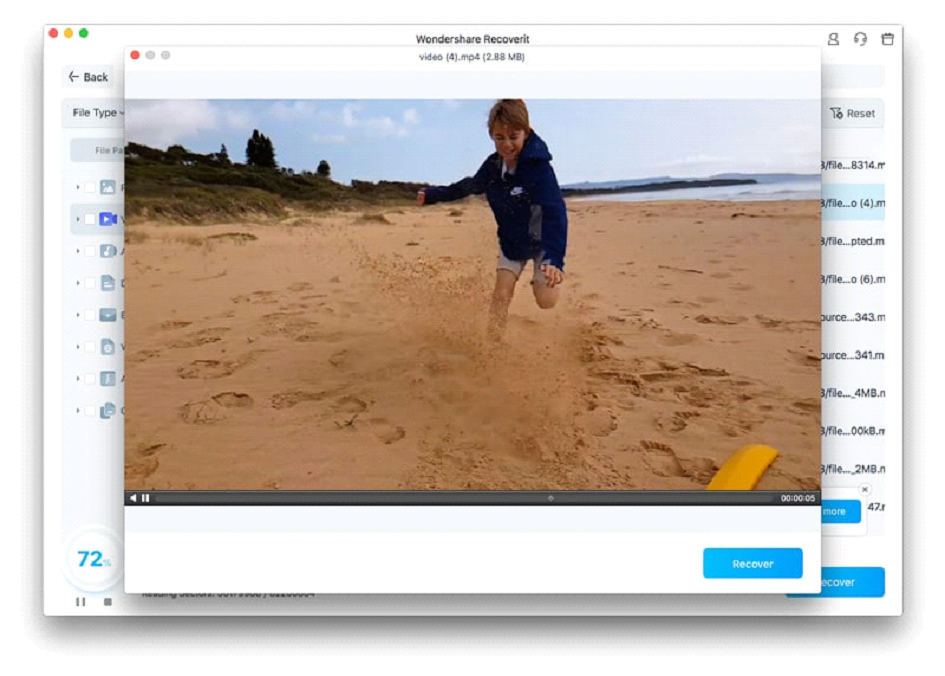
- Important: When saving your recovered files, always choose a new location, like an external drive. Never save them back to the original drive where they were lost.
Preventing Data Loss on Your Mac: Essential Backup Practices
The best way to handle Mac data recovery is to avoid data loss in the first place. Taking a few proactive steps can save you from the stress of losing files.
- Use Time Machine: Set up Apple’s Time Machine to automatically back up your Mac to an external drive. The more you keep the drive connected, the more often it backs up.
- Back up to the cloud: Use services like iCloud, Dropbox, or Google Drive to sync your most important files.
- Create a bootable clone: For the highest level of security, use a clone tool to create a full, bootable copy of your Mac’s drive.
- Verify your backups: Regularly check to make sure your backups are working correctly.
- Eject drives safely: Always use the “Eject” option in Finder before unplugging an external drive.
- Keep your Mac updated: Regularly update your macOS and apps to get the latest bug fixes and security improvements.
- Use antivirus software: Even though Macs are secure, a good antivirus program can protect against malware that targets your files.
Final Thoughts on Mac Data Recovery
Losing data on a Mac can be scary, but it’s often a fixable problem. By acting fast and using the right tools, you can get your files back. Having a good backup plan is your strongest defense, but for situations where backups fail or don’t exist, powerful Mac data recovery software like Wondershare Recoverit is essential.
Every Mac user should know how to recover lost data. A reliable data recovery solution is a key tool for protecting your digital life.
TOP ALTERNATIVES
 Transforming Clicks To Profits: 8 Strategies For Affiliate Marketing
 How to Invest in Cryptocurrency As a Beginner
 What Are the Best Lighting Decoration Ideas for 2024?
Bitcoin Revolutionizes Online Gaming Industry – A Win for Digital Transactions and Security
What Are the Best Lighting Decoration Ideas for 2024?
Bitcoin Revolutionizes Online Gaming Industry – A Win for Digital Transactions and Security
 Extending Your Device’s Battery Life
MovPilot Stream Video Downloader: All-in-One Video Solution
Extending Your Device’s Battery Life
MovPilot Stream Video Downloader: All-in-One Video Solution
 20 Tools To Boost User Engagement
Selecting KMSpico or KMSAuto as the Best Activator for Windows and Office
20 Tools To Boost User Engagement
Selecting KMSpico or KMSAuto as the Best Activator for Windows and Office
 Impact of AI on Graphic Design – AI Thumbnail Maker
 Crafting the Ideal Online Shopping Journey