
Introduction
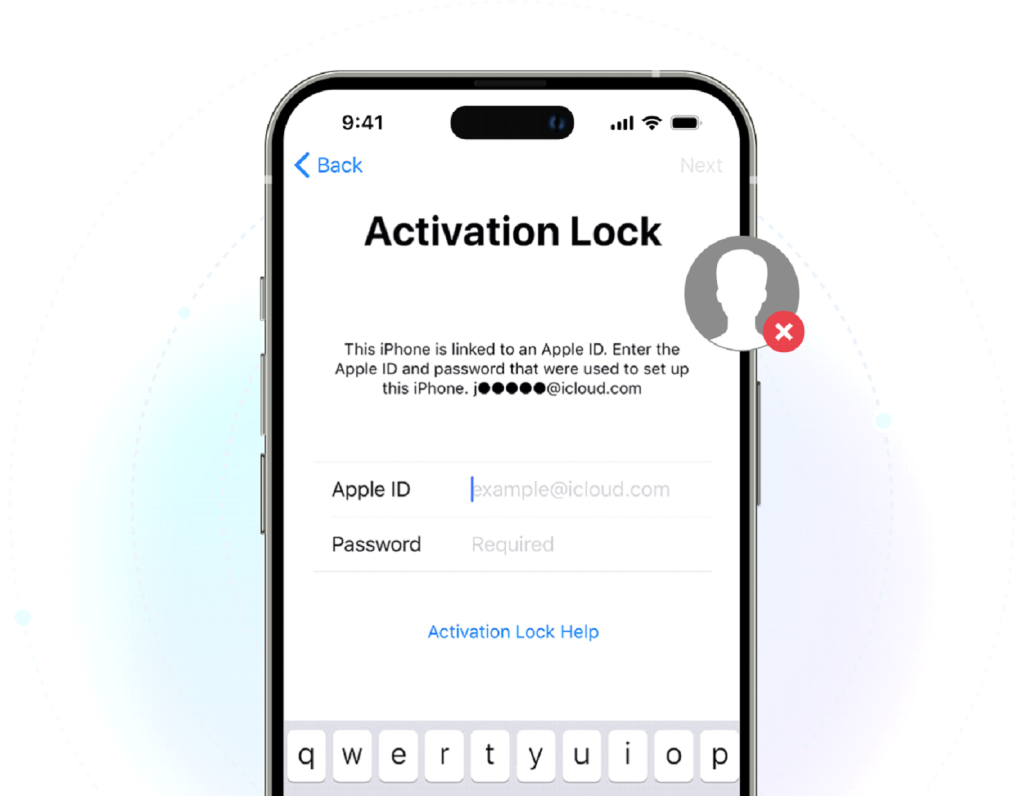
If you have ever reset your iPhone, purchased a second-hand one, or simply forgot your Apple ID – then you probably know how infuriating it is to be stuck on the iCloud Activation Lock screen.
This feature is Apple’s lock, which is part of Find My and your Apple ID security, that basically aims at stopping the unauthorized use of your device.
In this post, you will learn the right ways to bypass iCloud Activation Lock as the owner of an Apple device, which is through the official channels only. And if, for some reason, you cannot get access to your Apple ID, then don’t worry, we have some reliable third-party alternatives for you to consider.
What is iCloud Activation Lock?
When you activate Find My on your iPhone, iPad or iPod touch, you will be enabling iCloud Activation Lock without any additional effort. However, it can cause unexpected hiccups when a device gets factory-reset without a user, Apple ID sign out, when a second-hand device is still linked to the owner who sold it, or maybe when a person forgets their Apple ID.
While it’s a powerful anti-theft feature, it can also block rightful owners from using their own devices—setting the stage for the official solutions we’ll cover next.
Official Apple Methods to Remove Activation Lock
Method 1: Remove via iCloud.com (Previous Owner Still Accessible)
Here’s a simple official way to unlock a device if you or the previous owner has access to the linked Apple ID. The Activation Lock goes away when the device is erased and taken off the account.
Here are the steps:
Step 1: Go to icloud.com and log in with the linked Apple ID. Click on Find My.
Step 2: Click on All Devices and select the locked device.
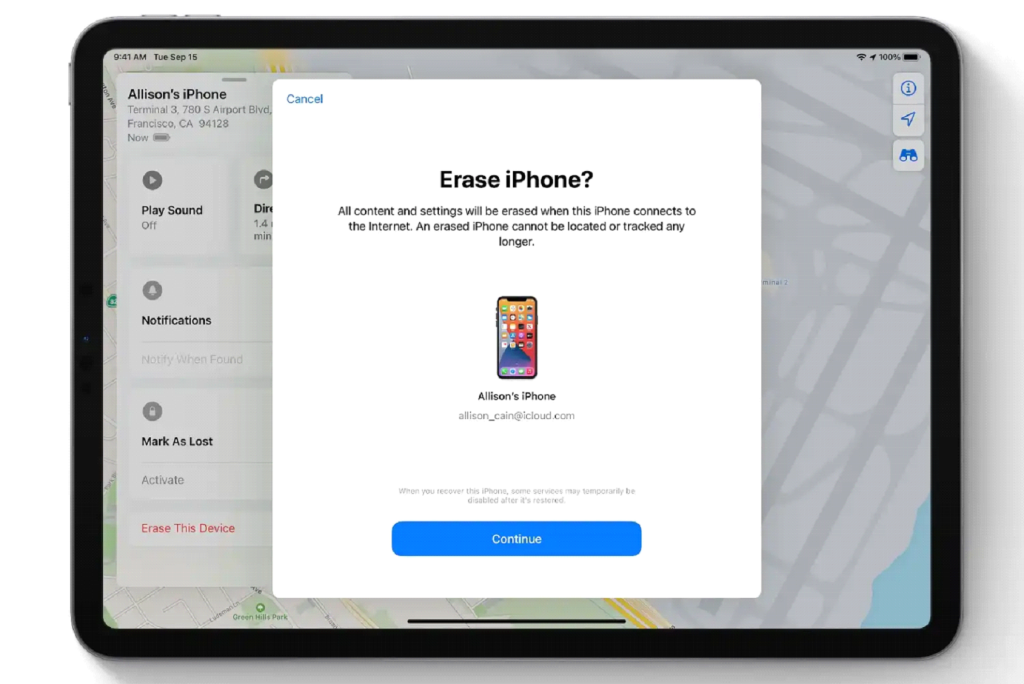
Step 3: Hit Erase Device to delete the device. Click Remove from Account to finish the unlocking.
Method 2: Remove During Device Setup (Apple ID & Password)
If you remember the original Apple ID and password, then one can unlock the device directly from the welcome screen. i.e., You then remove the Activation Lock right away without a second device.
Step 1: Input the original Apple ID on the Activation Lock screen.
Step 2: Type in the right password.
Step 3: Proceed with the setup to complete the unlocking of your device.
Method 3: Contact Apple Support with Proof of Purchase
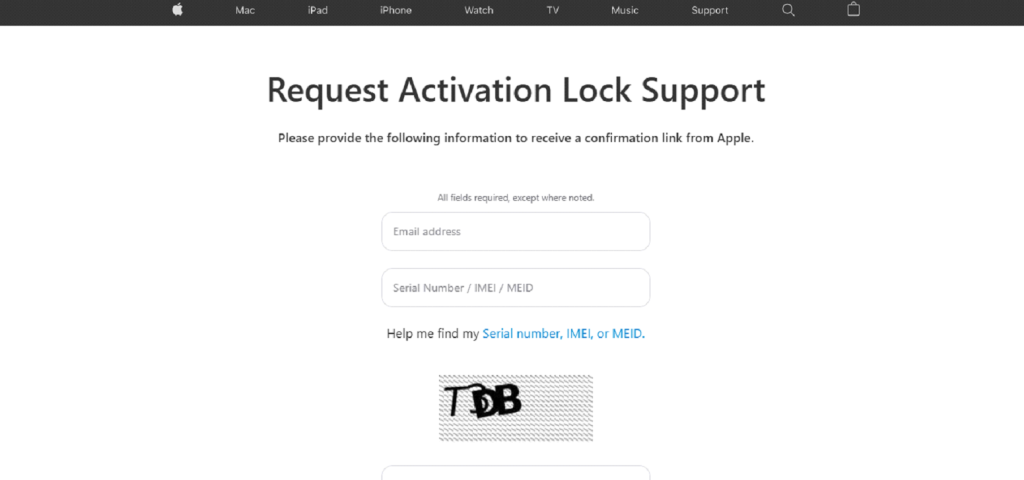
Apple Support may be able to assist you with bypass iCloud Activation Lock if you cannot remove it yourself on a second-hand device and the seller is also not reachable. However, they can only do this if you are the real owner of the device. Just be sure that your device is not in Lost Mode and is not managed by a business or a school, as Apple cannot handle managed or bulk requests.
Some key points:
- You need to be the owner of the device.
- Proof of purchase or ownership may be required by Apple, which can be in the form of serial number, IMEI, or MEID.
- Activation Lock will be disabled by Apple only after the device is completely erased. Backup restoration can potentially re-enable Activation Lock again.
- When you submit a request, you agree to Apple’s Terms of Use and Privacy Policy, and Apple has the right to refuse or cancel requests at its discretion.
Method 4: Apple-Authorized Service Provider
If online assistance isn’t sufficient, then you are able to go to an Apple Store or an Apple-authorized service provider. The technicians will authenticate the ownership immediately and proceed with the Activation Lock removal via official channels.
What to bring:
- A document that proves purchase and includes the device’s serial number, IMEI, or MEID
- A government-issued ID (at times, it is mandatory for verification purposes)
Generally, this method works most effectively, especially when the situation is complicated or when you want personal help.
If you have tried everything official that Apple offers, but nothing has worked for you, then it would be better to consider a reliable third-party solution. Actually, Dr.Fone – Screen Unlock (iOS) is a kind of third-party software that can be used as a substitute for the problem of iPhone Activation Lock removal.
When Official Methods Don’t Work: Using Dr.Fone – Screen Unlock (iOS)
If the official Apple methods have not been helpful and you still can’t find a way to unlock your device, Dr.Fone – Screen Unlock (iOS) might be the right solution. It was made for situations where you cannot contact the last owner, have forgotten your Apple ID, or have bought a second-hand device that is still locked to somebody else. Besides covering a wide range of iPhones from 5S to the latest 17 series and iOS 26.1, Dr.Fone offers a quick way to go around the Activation Lock screen in just minutes without jailbreak and secure, local processing.
Step-by-Step guide to Dr.Fone – Screen Unlock (iOS)
Step 1: Run Dr.Fone and select Screen Unlock
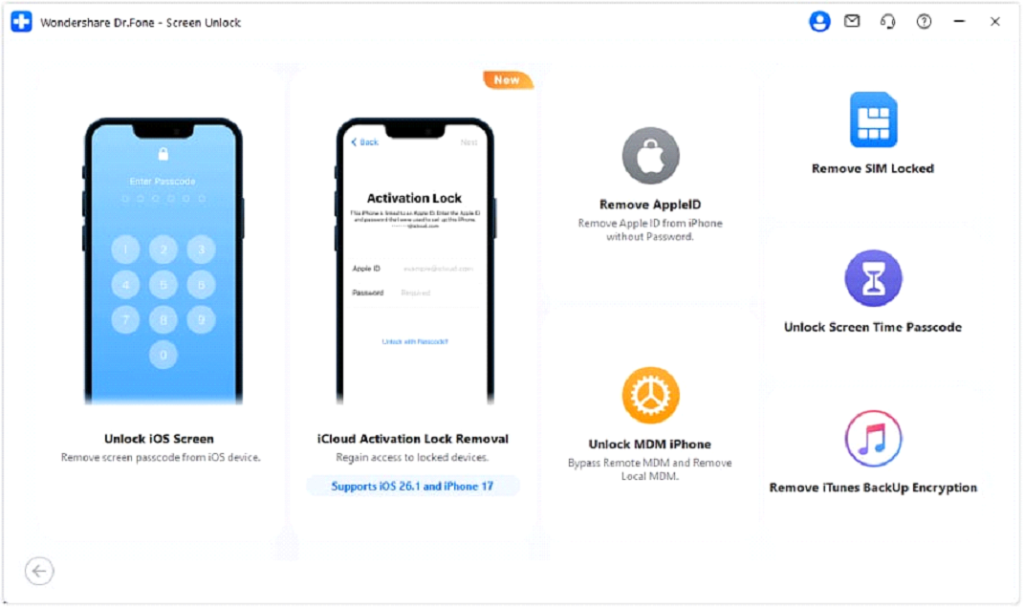
Get Dr.Fone installed on your PC first. Run it and navigate to Toolbox > Screen Unlock > iOS, after that hit iCloud Activation Lock Removal to start.
Step 2: Make your device ready and check info
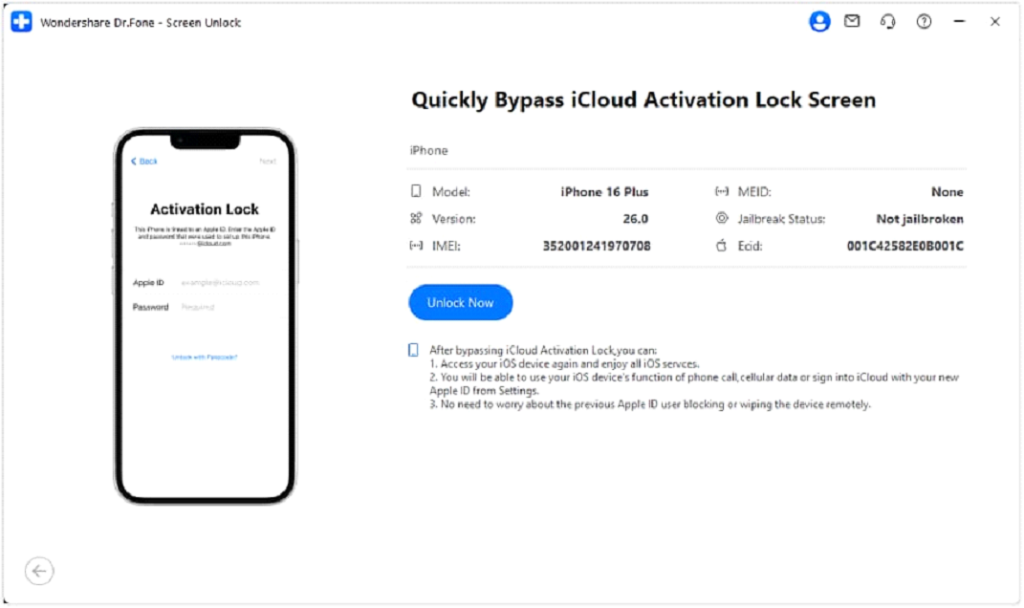
Firstly, connect your iPhone or iPad to the PC. After your device is recognized by Dr.Fone, check if the device details shown are correct before clicking on Unlock Now.
Step 3: Give permission and allow Dr.Fone to set up your device
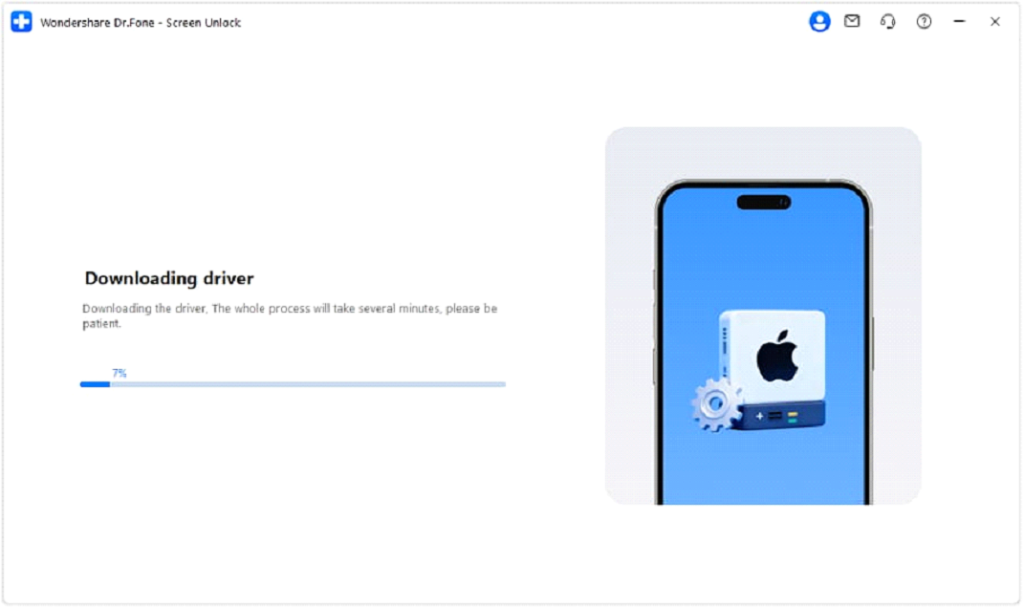
After understanding the caution messages, select I agree and execute. Dr.Fone will fetch the appropriate driver and get your device ready for the jailbreak.
Step 4: Unlock and complete the configuration
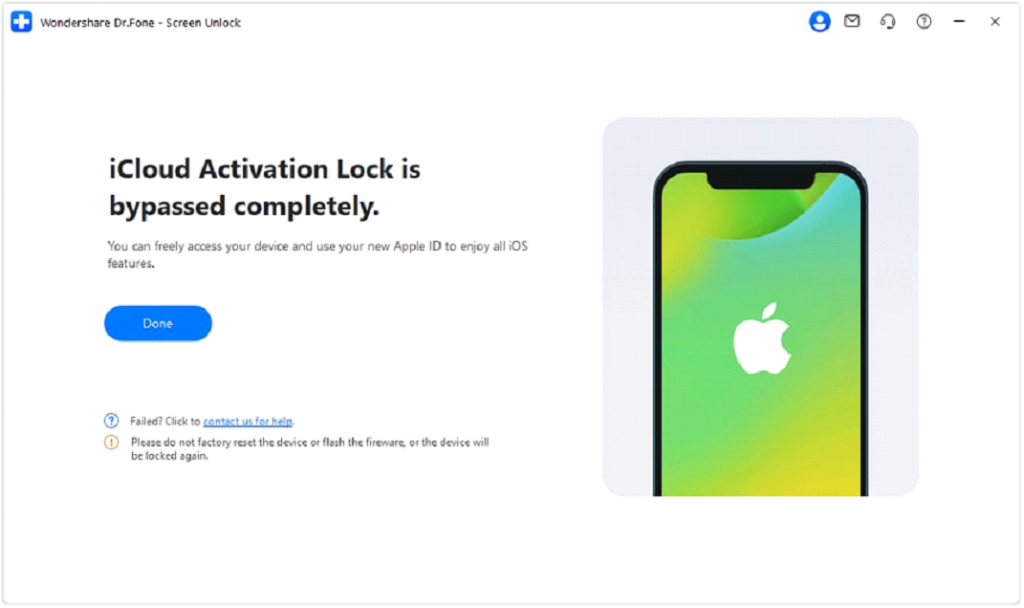
This software will perform the Activation Lock bypass automatically. Don’t disconnect the device until completion. You will then be able to use your device normally without the lock after receiving the success notification and the device restarting.
Tips to Avoid Getting Locked Out Again
- Before you sell or give away an Apple device, make sure you sign out of your Apple ID: Settings → [Your Name] → Sign Out.
- Store Apple ID username and password safely; the best way is to keep them in a password manager.
- One of the ways to help you decide not to buy a stolen Apple device is to check if the device still has an Activation Lock through checkcoverage.apple.com.
- Set up twofactor authentication on your Apple ID so you’ll always have a secure way to recover your account.
Conclusion
iCloud Activation Lock provides strong protection for your device, but in some cases, it ends up being a huge headache for you as a legitimate owner trying to restore your access. Apple has laid out different official ways to remove the lock safely. You can either sign in with your Apple ID, log in via iCloud.com, or if needed, receive assistance from Apple Support.
Nevertheless, if that still doesn’t suit you, dependable third-party tools like Dr.Fone – Screen Unlock (iOS) can actually be very useful in giving you access to your device again. Following the right path along with a few preventive precautions is all that it takes to keep the security of your Apple gadgets intact without the risk of being locked out later.
TOP ALTERNATIVES
 Transforming Clicks To Profits: 8 Strategies For Affiliate Marketing
 Crafting the Ideal Online Shopping Journey
 The Best Way to Recover WhatsApp Data on Android Without Rooting Your Phone
The Psychology of Computer Skills Testing: Boosting Confidence and Beyond
How to Buy Proxy with Credit Card: A Step-by-Step Guide
The Best Way to Recover WhatsApp Data on Android Without Rooting Your Phone
The Psychology of Computer Skills Testing: Boosting Confidence and Beyond
How to Buy Proxy with Credit Card: A Step-by-Step Guide
 From Samsung to iPhone: Transfer Your Photos in Minutes
 How to Transfer Apps from iPhone to Android
 How to Recover Lost Videos from Any Device (Even Corrupted Ones)
 The Ultimate Guide to Mac Data Recovery: Get Your Files Back on macOS
 FRP as a Double-Edged Sword: The Lockout Epidemic