
Many businesses already have product photos but lack video content for product pages, ads, or social media. Traditional filming requires additional preparation, including cameras, lighting, locations, and editing. For products that only need simple promotional visuals, an image to video AI generator can turn existing images into short videos without a full production process.
By using a product photo as a reference, users can create movements such as camera zooms, product rotations, environmental changes, or lifestyle scenes through text instructions. This approach works well for marketing experiments, social media content, and visual variations, although real filming is still more suitable when accurate product demonstrations are required.
How to Prepare a Product Image for Video Generation?
Before using an image to video AI generator, users should prepare a product image that provides enough visual information for the model to work with. The starting image affects how well the final video preserves the product’s appearance, including its shape, colors, and key details. A suitable reference image helps the AI understand the product structure and reduces unwanted changes during generation.
1. Choose an Image That Shows the Product Clearly
A clear product photo with visible details and minimal distractions usually provides a better reference. While clean backgrounds are helpful, lifestyle images can also work when users want to create scene-based videos.
2. Match the Image With the Intended Video Style
The source image should fit the planned motion. Users should avoid expecting AI to generate hidden product details, so important angles or features should already be visible in the image.
How to Generate a Product Video with Pollo AI’s Image to Video AI Generator?
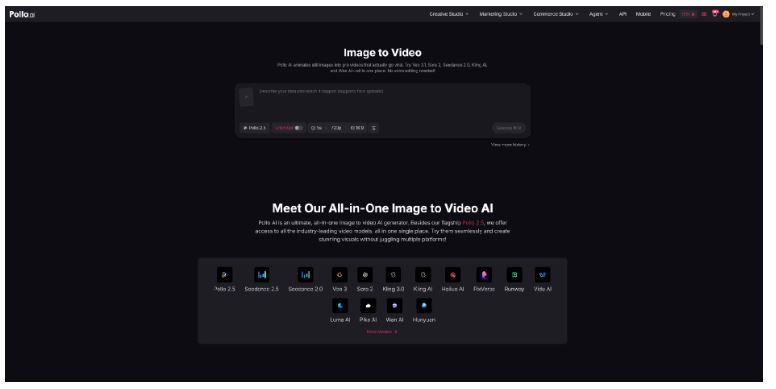
Pollo AI’s image to video AI generator allows users to upload an image, add a prompt, select generation options, and create a video based on the reference image. The workflow supports different AI video models and creative tools, including the CapCut AI video editor, giving users more flexibility when exploring different visual styles, motion effects, and editing approaches.
1. Upload the Product Photo and Set the Direction
After uploading the product image, users can decide what kind of video they want to create. Instead of only describing the product itself, the prompt should focus on movement and atmosphere.
For example:
A luxury watch placed on a dark surface. The camera slowly moves closer while soft reflections move across the metal body, creating a premium product showcase.
This type of description gives the model information about camera movement, lighting, and mood while keeping the product as the main focus.
2. Select a Suitable Video Model
Pollo AI provides access to multiple image-to-video models within the same workflow, including models such as Veo, Sora 2, Seedance, Kling, Runway, Hailuo, Luma, and Pika. Different models may have different strengths in areas such as realism, camera movement, style interpretation, or creative effects.
For example, a user creating a realistic product advertisement may test models focused on natural motion, while a more creative campaign visual may benefit from a model with stronger style transformation abilities.
Instead of changing the prompt repeatedly, testing different models with the same image can sometimes be a faster way to find a suitable result.
3. Adjust the Result Based on the Product Goal
The generated video should match the purpose of the content. A short social media clip may only need a visually attractive product reveal, while an e-commerce video may need clearer product visibility.
If the product changes too much during generation, users can simplify the prompt and reduce unnecessary movements. Describing one main action usually works better than asking for multiple scene changes at the same time.
How to Improve the Generated Product Video?
AI-generated videos often work best through small adjustments rather than creating a completely new version each time.
1. Refine Motion Instead of Adding More Effects
When a video feels unnatural, the issue is often excessive movement. A slower camera movement or a simpler background action can help maintain product consistency.
For example, changing “the product flies through different scenes with dramatic effects” to “the camera slowly rotates around the product in a clean studio environment” may produce a more controlled result.
2. Create Multiple Versions From One Product Image
A single product photo can be reused for different marketing needs. Users can create a close-up showcase, seasonal campaign visual, or lifestyle advertisement by changing the scene description while keeping the same reference image.
This is especially useful when businesses need multiple creative variations but do not have new product footage available.
3. Add Final Marketing Elements Separately
For professional content, important information such as prices, product names, or promotional messages is usually better added during editing. This allows users to control the exact placement and avoid relying on AI-generated text.
Conclusion
An image to video AI generator provides a practical way to extend existing product images into video content without arranging a full filming process. With Pollo AI, users can experiment with different video models and create variations from the same product photo based on different creative goals.
The most effective workflow is not about adding as many effects as possible, but about choosing a suitable reference image, defining clear motion, and selecting a model that matches the intended style. For businesses that need more visual content from existing assets, this approach can help shorten the gap between product photography and video production.
TOP ALTERNATIVES
 How to Buy Proxy with Credit Card: A Step-by-Step Guide
 How to Recover Lost Videos from Any Device (Even Corrupted Ones)
 The Ultimate Guide to Mac Data Recovery: Get Your Files Back on macOS
 FRP as a Double-Edged Sword: The Lockout Epidemic
 How to Remove iCloud Activation Lock the Right Way (Official Apple Methods)
 Running Out of Creative Ideas? Try an AI Image Generator From Image
 A Quick Guide for Generating Auto Captions and Subtitles for Videos
 How To Use AI To Remove or Erase People and Objects From a Video
How AI Search Could Change The Way Companies Build Trust Online
Why Financial Planning and Marketing Must Work Together
How To Use AI To Remove or Erase People and Objects From a Video
How AI Search Could Change The Way Companies Build Trust Online
Why Financial Planning and Marketing Must Work Together