
Most editors have been in this situation: recording a beautiful shot only to find that a stray pedestrian, bird, or logo was in the frame. These are the kind of problems that are really hard to spot during production. So, during the editing phase of the project, it takes a lot of effort to remove people from videos.
Before, you would need specialized skills to remove objects from videos. Now, all you need is a good tool and a bit of editing skills. Curious how? Read through this article to learn more.
Part 1. 5 Great AI Video Object Removers for 2026
To begin our discussion, let’s take a look at the five leading AI video object removers in 2026. These tools offer easy access to the powerful feature while at the same time ensuring that they work great for your projects.
Wondershare Filmora
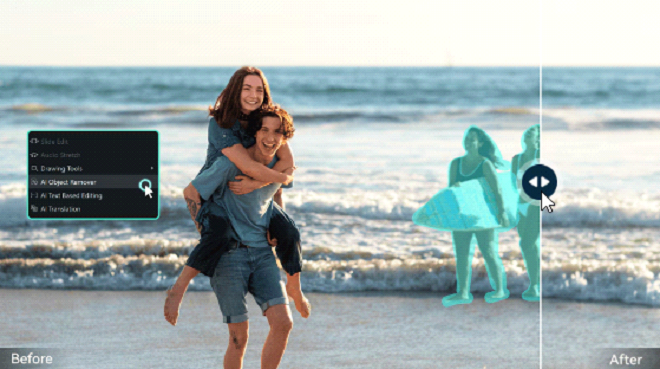
First, we have Wondershare Filmora, with an AI object removal tool that supports the erasing of people, text, logos, and other objects you can think of. This video editor strikes the perfect balance between professional video editing and ease of access.
In particular, the AI object removal tool uses the latest AI tech, while offering simple methods to use it: 1) by rectangle selection, and 2) with a brush tool. In the latter part of this article, you’ll see how easy it is to use, so stay tuned for that.
Media.io
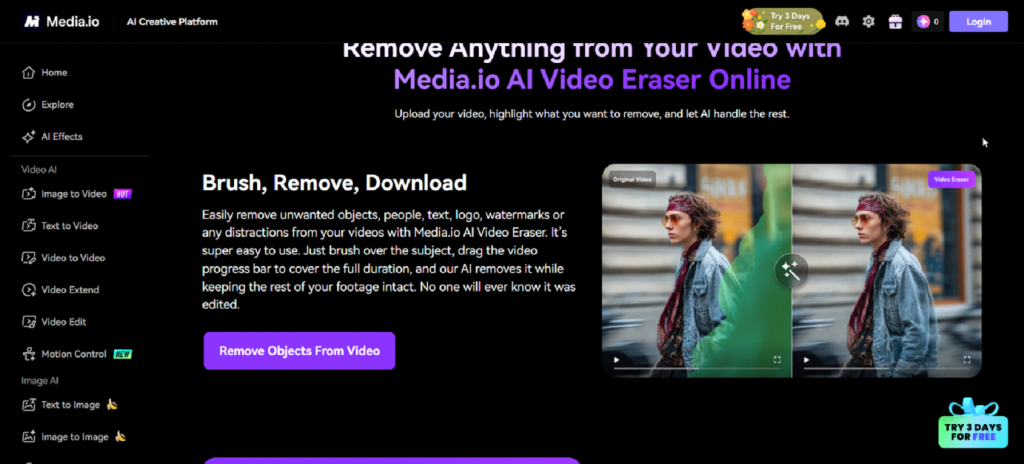
For a web-based option, we have Media.io. It’s a solid choice for quick fixes. You don’t even need a powerful PC like most of the options here, because it does the AI object removal via the cloud. You can use it best for shorter clips.
Adobe Premiere Pro
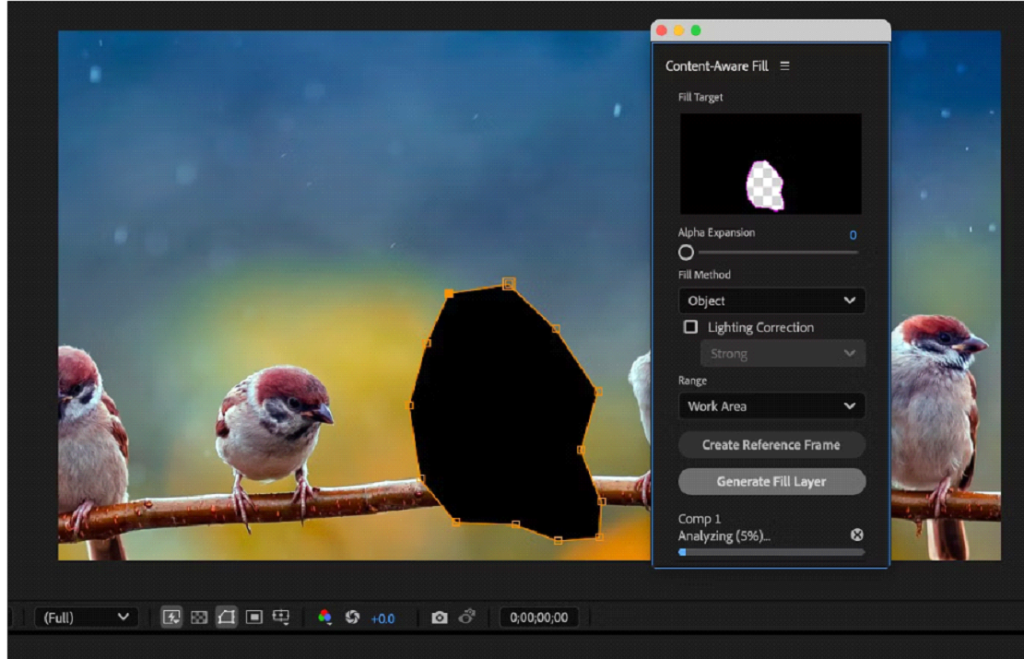
Of course, any video editing list is not complete without Adobe Premiere. As one of the industry’s leading programs, Adobe also has its proprietary “Content-Aware Fill,” which lets you insert or remove almost any element within your video. The only downside of this tool is its higher subscription cost and technical know-how required.
Runway Gen-3: Remove From Video
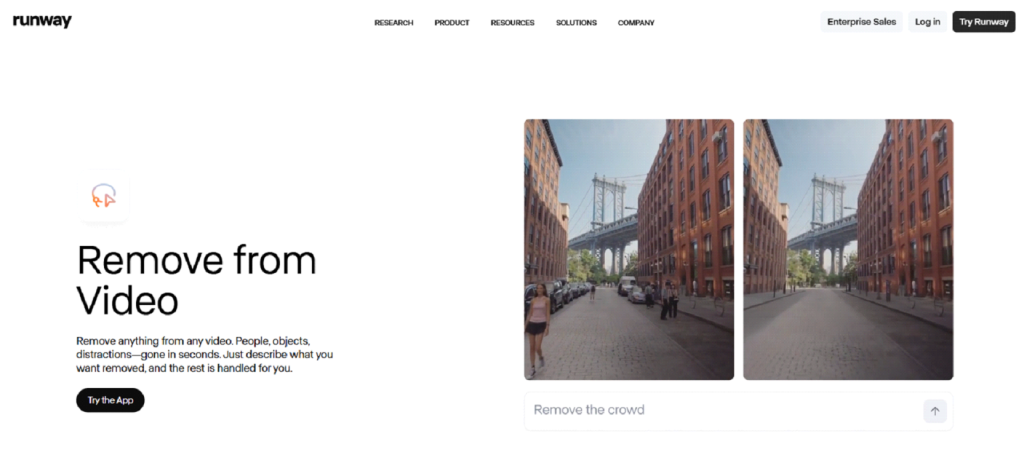
Another up-and-coming, solid pick is Runway Gen-3’s Remove from Video app. The workflow here is simple. You upload your video, describe what you want removed, wait for the result, and enjoy your cleaned-up footage. However, it’s currently limited to 5-second videos only.
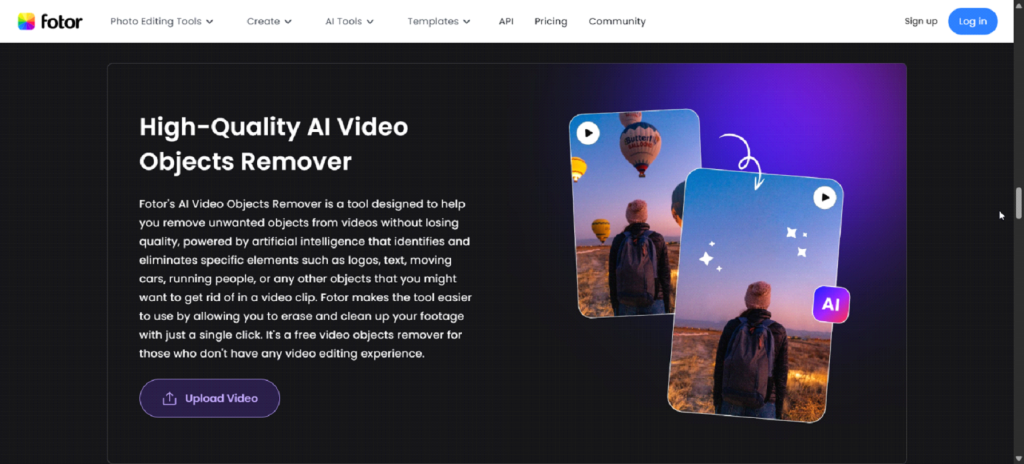
Fotor
Lastly, we have Fotor’s AI object remover. It’s another web-based option that provides you with a bit of editing features necessary to clean up any small mishap during the object removal process. Nevertheless, it’s a good, free choice you should also consider.
Part 2. How Filmora Stands Out for AI Object Removal and Video Editing
While many tools can “blur” or “patch” a video, Filmora stands out because of its AI Smart Cutout and AI Object Remover technologies. Most eraser tools leave a noticeable smudge on an area. With Filmora, you can avoid this problem because it not only removes an object, but it also pulls the data of the background’s context and generates the succeeding frames with precision.
If, in the rare chance that you’re not satisfied with the result of the AI object removal, Filmora also provides you with other AI tools and manual features to clean them up. This means that Filmora has all your sides covered to make sure that you have a beautiful and seamless experience while video editing.
Part 3. How To Remove Unwanted People or Objects From a Video
As promised, you’ll see how Filmora makes it easy to remove people from your video. There are five easy steps to follow, and it’s best if you load up Filmora on the side. Download and install Filmora first before trying out the steps below:
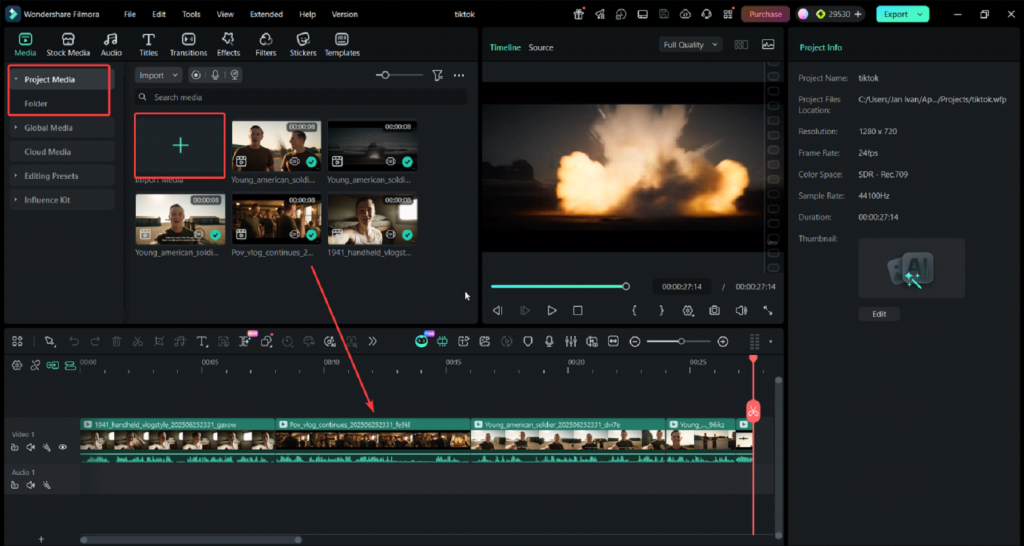
Step 1: After launching Filmora, create a New Project. Then drag the video you want to clean up in the timeline. Alternatively, you can add them through Stock Media > Project Media > Import.
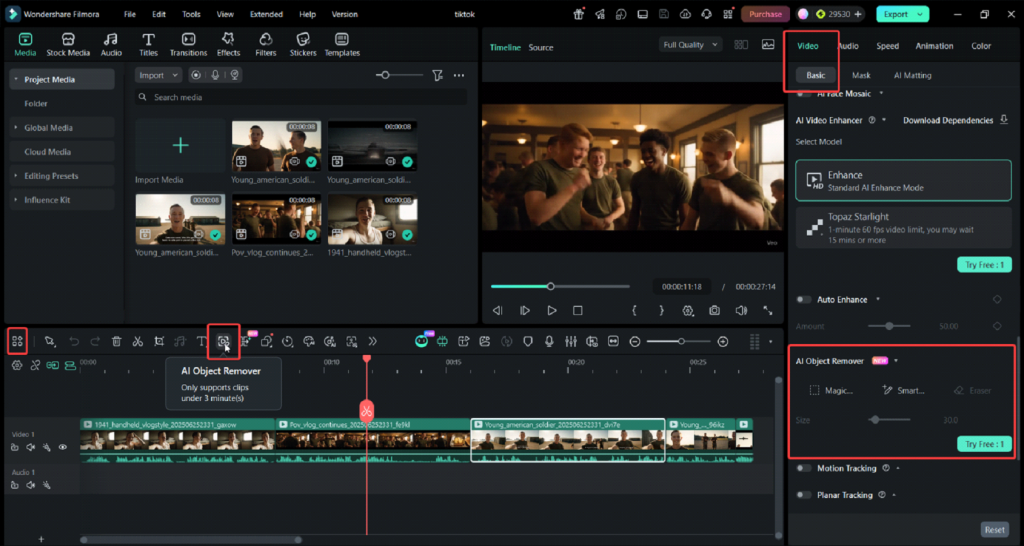
Step 2: After that, go to Video > AI Object Remover from the right-hand panel after selecting a video. You can add it to your Custom toolbar by clicking the left-most icon and dragging the AI Object Remover to the tab.
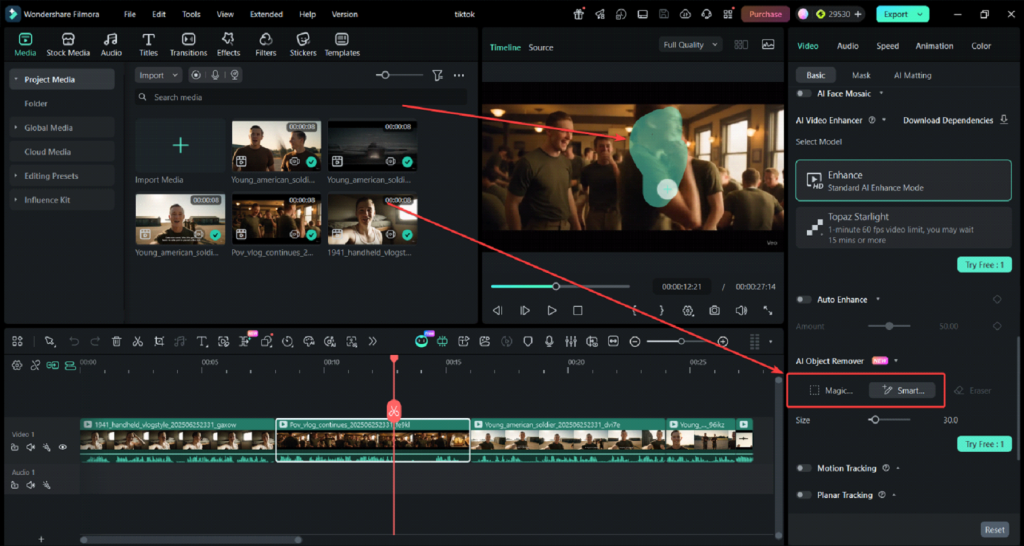
Step 3: You can use the AI Object Remover in two ways:
- Magic Box: Drag your mouse to create a rectangle-shaped selection tool around the objects you want removed.
- Smart Brush: Drag your mouse like a brush to outline the people or objects you want removed in the video.
For accuracy, you should use the Smart Brush. For quick work, try to use the Magic Box instead.
Step 4: After using the tools above, the people/objects should now be cleanly removed. Should there be any imperfections, use Filmora’s other editing tools like color correction, color match, stabilization, and other tools.
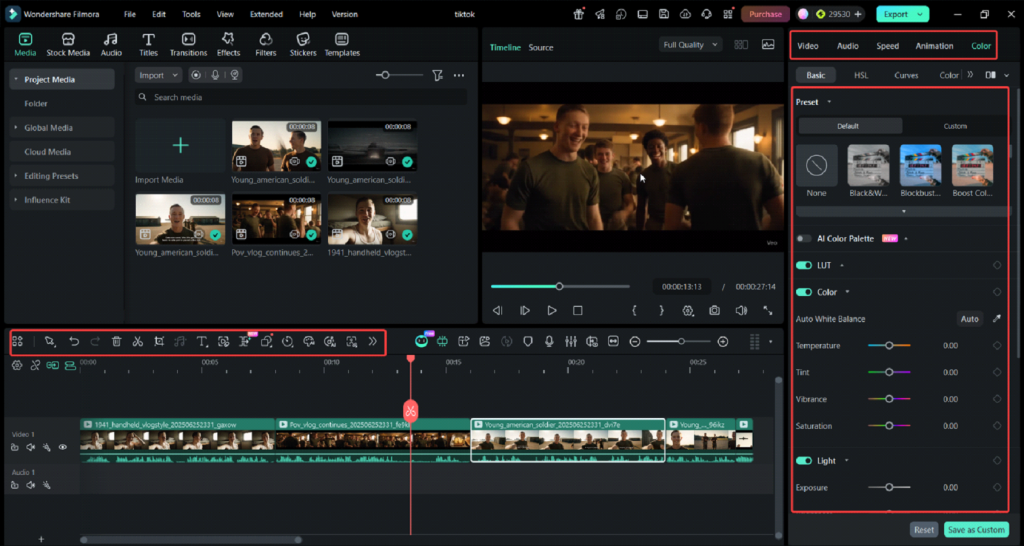
Step 5: After finishing your edit, export your work accordingly.
Part 4: Practical and Advanced Use Cases for AI Object Removal
As a video editor, you should take advantage of AI object removal as a feature across your projects. This should be used to improve your editing workflow. But if you want more specific tips, here are practical and advanced use cases for this feature that advanced editors use with:
- Anonymizing content: If you’re editing for commercial purposes, chances are, you can’t show other businesses’ logos in your video. Showing other people’s faces can also bring about data privacy concerns. Company video editors use AI object removal to avoid these legal complications.
- Real estate cleanup: Video editors can also use this for erasing power lines or unsightly construction equipment from property walkthroughs. If you’re a video editor for real estate companies, this would be a good feature to have.
- Cinematic polish: For moviemakers, there also comes a time when microphone booms or camera shadows appear in a shot. Video editors can use the feature to remove them.
FAQs
1. Why does the background look “wavy” after removal?
This usually happens with complex, moving backgrounds (like rushing water). Try shortening the clip or using a smaller, more precise mask to help the AI focus.
2. Can I remove multiple people at once?
Yes, but for the best results, it is often better to process one major object at a time if they are moving in different directions.
3. Does it work on 4K footage?
High-performance tools like Filmora handle 4K well, but ensure your computer has a dedicated GPU to speed up the AI rendering process.
TOP ALTERNATIVES
 The Best Way to Recover WhatsApp Data on Android Without Rooting Your Phone
How to Buy Proxy with Credit Card: A Step-by-Step Guide
The Best Way to Recover WhatsApp Data on Android Without Rooting Your Phone
How to Buy Proxy with Credit Card: A Step-by-Step Guide
 From Samsung to iPhone: Transfer Your Photos in Minutes
 How to Transfer Apps from iPhone to Android
 How to Recover Lost Videos from Any Device (Even Corrupted Ones)
 The Ultimate Guide to Mac Data Recovery: Get Your Files Back on macOS
 FRP as a Double-Edged Sword: The Lockout Epidemic
 How to Remove iCloud Activation Lock the Right Way (Official Apple Methods)
 Running Out of Creative Ideas? Try an AI Image Generator From Image
 A Quick Guide for Generating Auto Captions and Subtitles for Videos